
Remote stitching
Remote stitching relieves tmux users from having to self-manage tmux-in-tmux instances.
Previously, to maintain SSH connectivity through a jump host as a tmux user, you’d have to:
- Open an SSH connection to the jump host from inside a local tmux pane
- On the jump host, start another instance of tmux
- Open a second SSH connection to the actual target
- Fumble with sending the prefix key twice to communicate ‘detach’ to the remote tmux
With remote stitching:
- Configure a remote server once in Options
- From any pane, select
☰thenConvert to remoteand choose the server - Anything you do on the remote host will be persisted for you 1
Effectively, remote stitching converts a single local tmux pane into a window onto a shell running on an SSH host. The pane keeps its place in your local layout, the surrounding window stays local, and Honeymux continues to track clipboard passthrough and agent activity through the remote connection — so one window can mix local and remote panes without leaving the local tmux session.
Configuring remote servers
Section titled “Configuring remote servers”Remote targets live in the remote array of ~/.config/honeymux/config.json. Each entry is a RemoteServerConfig object with:
name(required) — user-facing label shown in the pane border menu, for example"dev-box".host(required) — SSH hostname or an alias from~/.ssh/config.port(optional) — SSH port. Defaults to22.identityFile(optional) — path to an SSH identity key file.agentForwarding(optional) — forward the local SSH agent to the remote. Defaults tofalse.
See remote in the Configuration reference for the authoritative field list. Edit the array by hand or from the Remote tab in Options.
Converting a pane to remote
Section titled “Converting a pane to remote”Open the pane border menu from the ≡ button on any pane border, then pick Convert to remote ▸ and choose a server from the submenu.
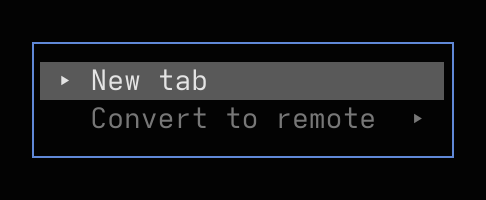
A server whose SSH connection is still coming up is listed as <name> (please wait) and is disabled until it is ready. When no configured server has connected yet, the parent menu item reads Convert to remote (please wait) with no submenu arrow.
Behind the scenes Honeymux spawns a shell on a mirror pane over the SSH connection and respawns the local pane with a proxy process that forwards output from the remote shell. The local pane ID does not change, so pane tabs, zoom, and layout are preserved.
Reverting to local
Section titled “Reverting to local”On a remote pane, the border menu’s first entry becomes Revert to local. Selecting it respawns the pane with a local shell and clears the @hmx-remote-* tmux options that marked the pane as remote.
XXX TODO: I think this feature is broken; revisit
When SSH fails
Section titled “When SSH fails”If a server’s SSH connection drops or fails to come up, Honeymux records the error and surfaces it through the Notifications review frame. Opening the entry shows the SshErrorDialog — the server name, the sanitized error text, and how long ago it happened — with an OK button to dismiss.
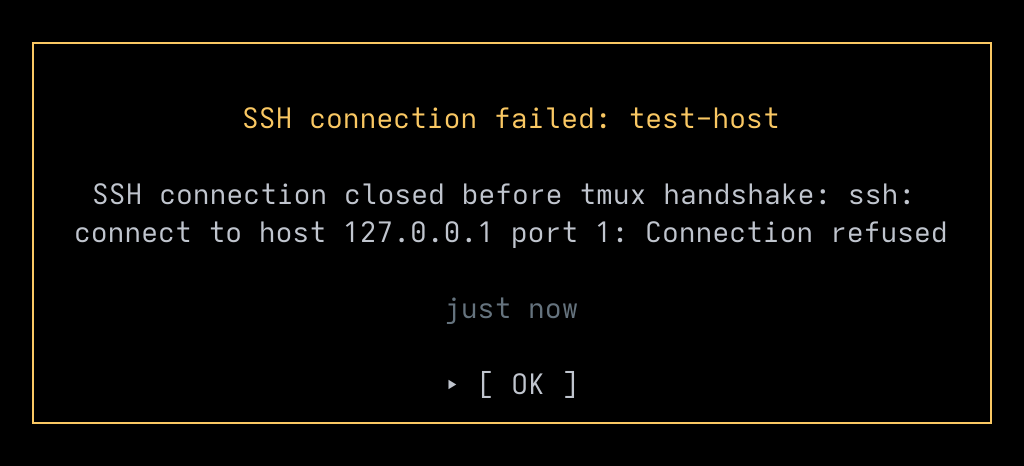
Dismissing the dialog clears it for that review pass; the underlying warning also clears automatically once the server reconnects.
Agent monitoring over remote
Section titled “Agent monitoring over remote”Coding agents started inside a remote pane are tracked the same way as local ones. In the Agents dialog and the Agents view of the Sidebar, remote sessions are grouped under their server’s name instead of localhost, so you can tell at a glance which host a given agent is running on. See Agent Integrations for per-provider install details.
Footnotes
Section titled “Footnotes”-
This is accomplished in part by mirroring the local tmux layout to each remote server. ↩
Screen captures powered by Honeyshots
Copyright © 2026 Aaron Campbell · Apache 2.0