
Sidebar
The sidebar is intended for at-a-glance summary information and lightweight interaction, currently providing the following views:
- Agents
- Server
- Hook sniffer
Switch views from the three dots at the top of the panel, or with the left/right arrow keys when the sidebar is focused.
Agents
Section titled “Agents”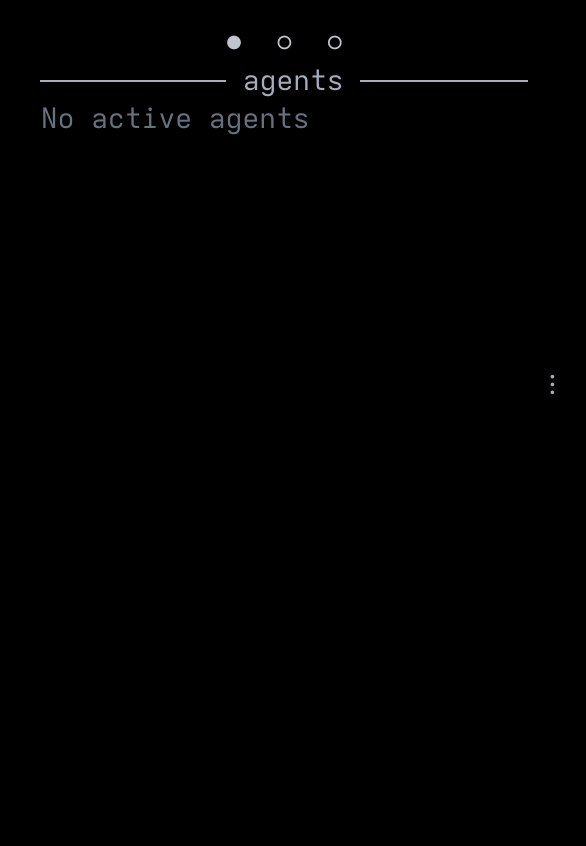
XXX TODO: Need a better screenshot
One row per active agent session, grouped first by locality (local sessions, then by remote host) and then by team — teammates nest under their lead. Each row shows a status glyph, the agent or teammate name painted in the agent’s brand color (see Agent Integrations for the palette), and right-aligned columns for the conversation prompt, working directory, host, process ID, and short session id. Columns drop off from the right as the panel narrows.
Click a row, or press Enter while the sidebar is focused, to jump to the pane running that agent. Press Space on a focused row to enter the muxotron-focus review workflow for that session. The Agents dialog is the full-screen counterpart to this view.
Server
Section titled “Server”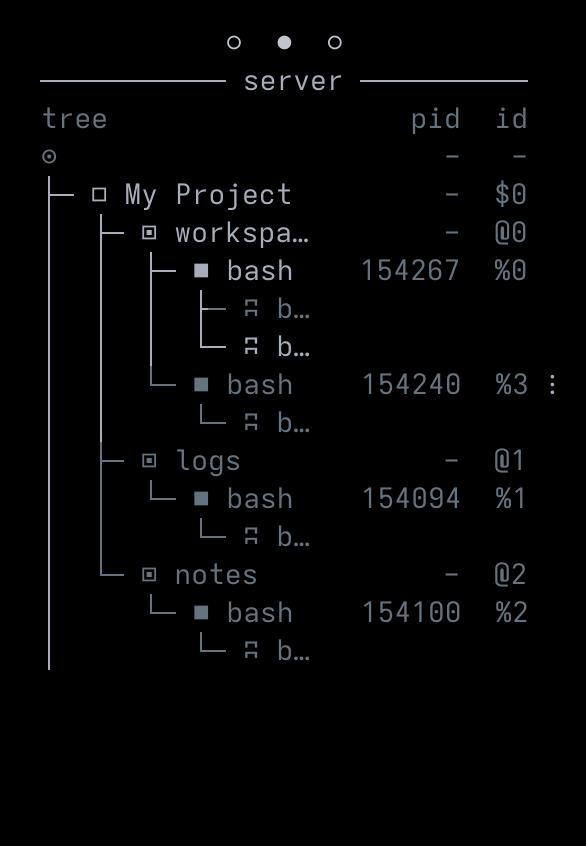
XXX TODO: Need a better screenshot
Displays the tmux layout hierarchy: sessions, windows, panes, and pane tabs (if enabled). For each pane, the OSC 2 window title, process ID, current working directory, and tmux object identifier are shown.
Hook sniffer
Section titled “Hook sniffer”
XXX TODO: Need a better screenshot
A debug and observability aid: each row is a raw hook call issued by an integrated coding agent, with the event timestamp, agent type, session id, process id, and hook event name (plus tool name, if any). New events append at the bottom and the view auto-scrolls while you’re already at the tail.
Resizing
Section titled “Resizing”Drag the ⋮ grip at the right-center edge of the panel with the mouse.
Tree zoom
Section titled “Tree zoom”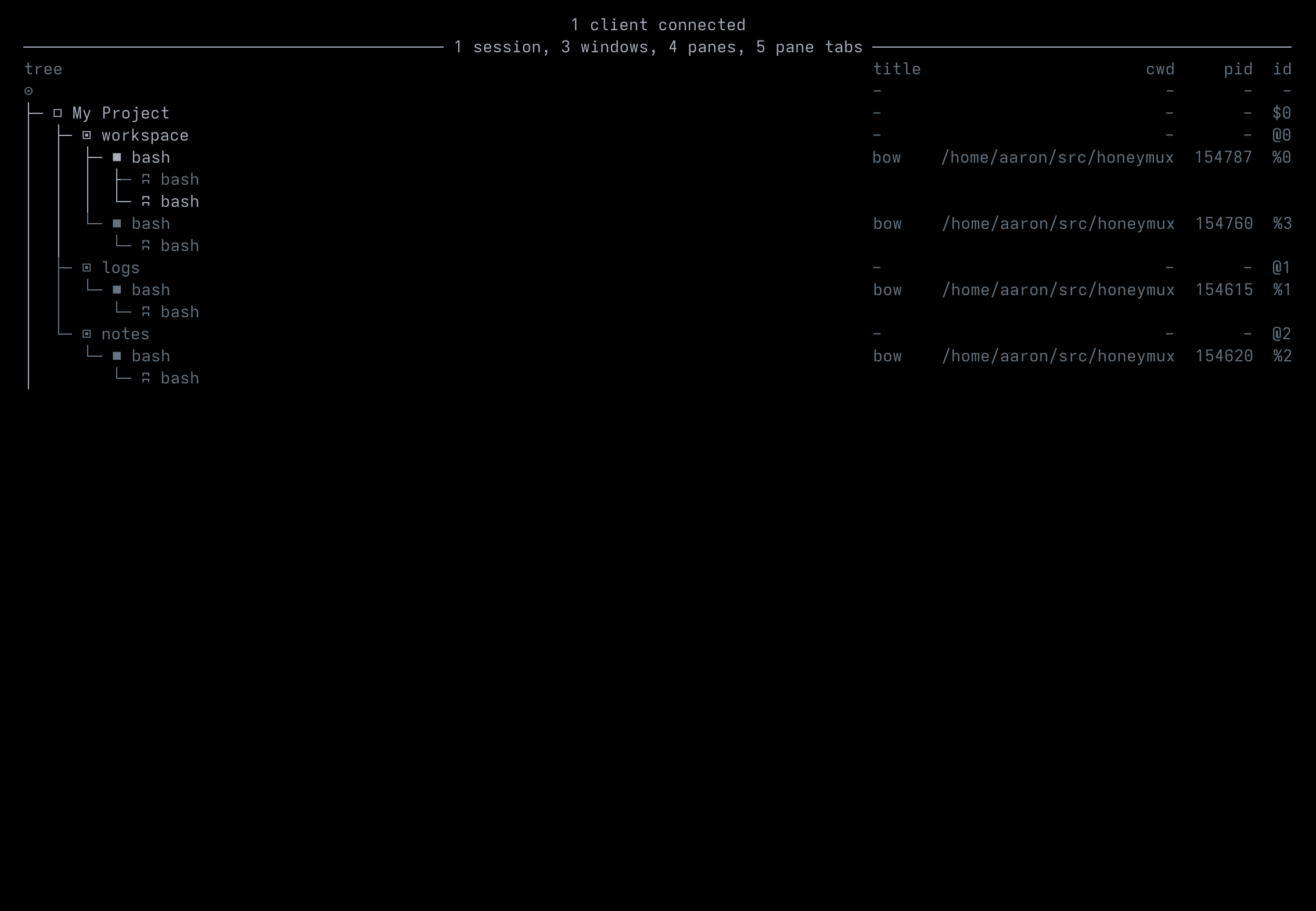
XXX TODO: Need a better screenshot
The zoomServerView key binding temporarily expands the server tree over the full terminal width, with a header line summarising the server’s session, window, pane, and pane-tab counts plus the number of connected clients. By default the binding is sticky — tap to toggle — but you can set zoomServerViewStickyKey to false to require the key be held down instead. The zoomAgentsView action is the matching surface for the Agents View.
A main use case for this view are for quick access to full window titles.
Screen captures powered by Honeyshots
Copyright © 2026 Aaron Campbell · Apache 2.0