
Sessions
The Sessions dropdown is Honeymux’s view of the tmux sessions running under the current server. It lists every non-internal session, shows the currently attached one in the accent color, and offers inline controls for renaming, color-coding, and deleting. Open it with S from the Main Menu, by binding the sessions action to a hot key, or by clicking the session name in the tab bar.
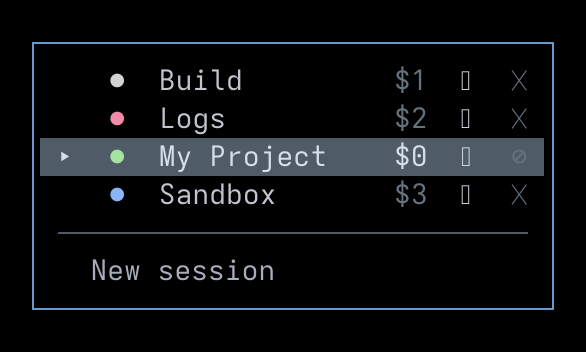
XXX TODO: Fix pencil glyphs not rendering
Switching
Section titled “Switching”Sessions are listed alphabetically; the currently attached session is highlighted. Move the focus with ↑/↓ and press Enter to attach, or click a row. Each row also shows the tmux session id ($N) on the right.
Two key bindings bypass the dropdown entirely: prevSession and nextSession switch to the previous or next session in alphabetical order. They are unbound by default — assign them from the Key Bindings page.
Creating and renaming
Section titled “Creating and renaming”Select New session at the bottom of the dropdown (or press Enter on it from the keyboard) to open an inline name prompt. Type a name and press Enter to create, or leave the field empty to let tmux auto-number the session. Escape cancels.
To rename, focus a row and arrow-right to the ✎ icon, then press Enter (or click the icon). The prompt is pre-filled with the current name; Enter commits the rename, Escape cancels.
Color coding
Section titled “Color coding”Each session carries an optional color swatch, rendered as a ● to the left of the name and stored on the tmux session as the @hmx-color user option. The color is preserved across hmx restarts because it lives with the session itself, not in Honeymux state.
To change a session’s color, focus its row and arrow-right to the swatch, then press Enter (or click the swatch). The color picker opens with a scheme selector along the top, a two-row 16-swatch palette from the active scheme, a full-spectrum color wheel (mouse-only), and a Reset to Default button at the bottom.
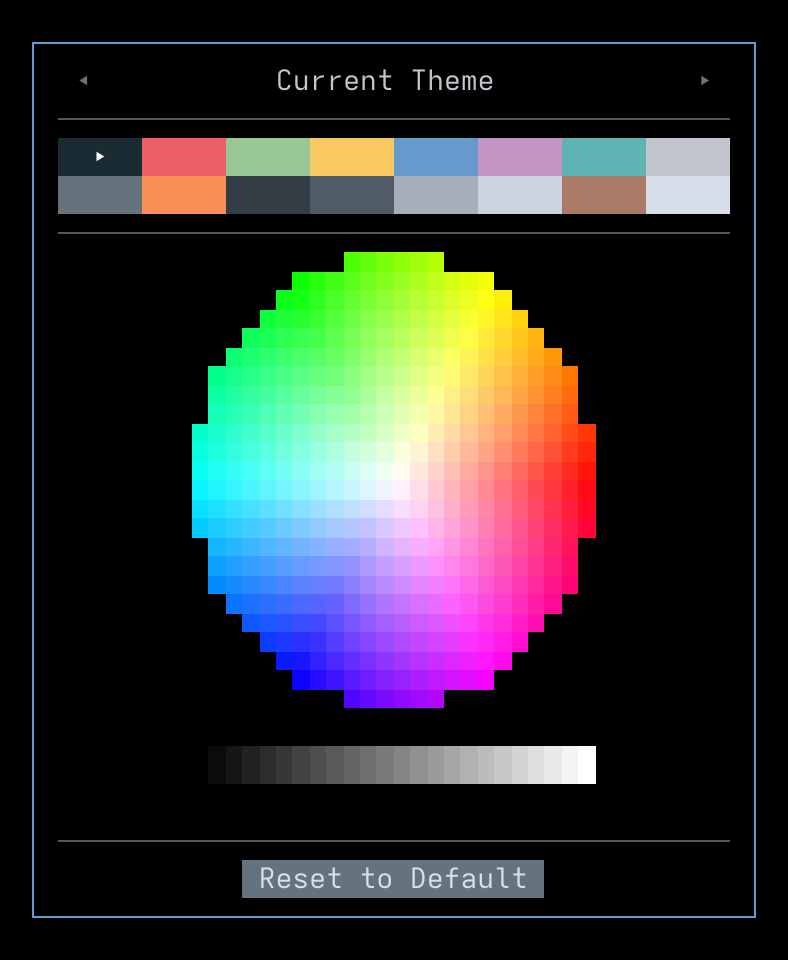
Arrow keys move between the scheme selector, the palette grid, and the reset button; Enter picks the focused color or resets. Picking from the wheel requires a click. Choosing Reset to Default clears @hmx-color so the session falls back to the first palette slot.
Deleting
Section titled “Deleting”Focus a session row and arrow-right to the ✕ icon, then press Enter (or click the icon) to open the delete-confirm dialog. Honeymux looks up the impact and shows it below the prompt — N windows, N panes and, when any are present, N pane tabs — so you can see what is about to be killed before you answer.
The dialog defaults its focus to No. Arrow-left/right (or Tab) swap between Yes and No; Enter acts on the focused button and Escape cancels. Deleting runs tmux kill-session for the chosen session; the change reflects in the dropdown as soon as tmux reports it.
The currently attached session cannot be deleted from the dropdown — its ✕ icon is replaced with ⊘ and is skipped by arrow-key navigation. Switch to another session first if you need to remove the one you’re attached to.
Screen captures powered by Honeyshots
Copyright © 2026 Aaron Campbell · Apache 2.0